
The folder comparison window shows two directory trees side by side and lets you compare, navigate, and act on their contents.
Main Areas
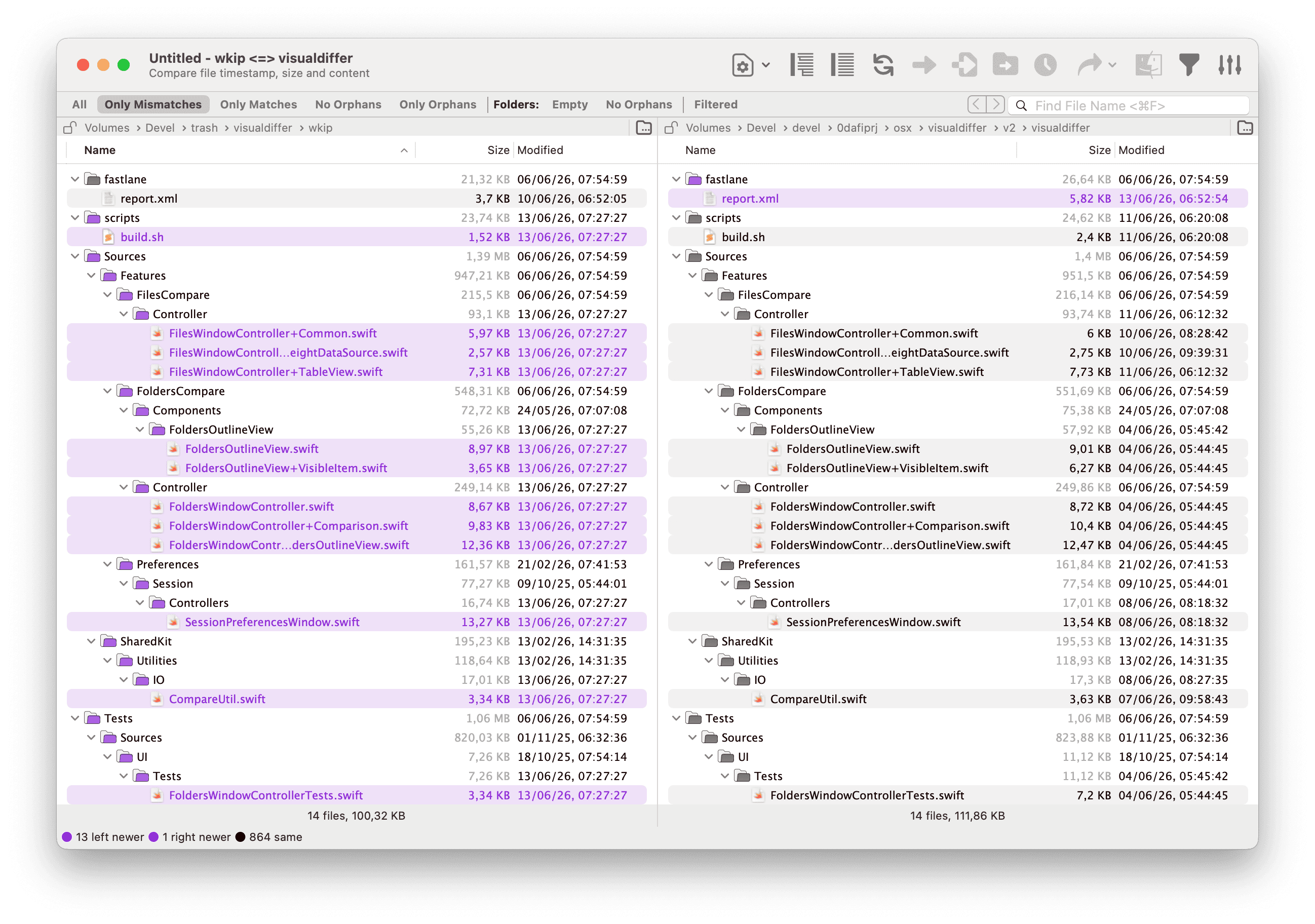
① Toolbar — quick access to comparison, file operations, and session preferences.
② Path control — shows the left and right root paths. Click to change a path, or drag a folder from Finder onto it.
③ Folder trees — the two directory trees shown side by side. Files and folders are color-coded to reflect the comparison result; see Colors Legend for details.
④ Scope bar — filters what is shown in the trees. See Scope Bar below.
Scope Bar

The scope bar has three independent groups.
Display Filter
The first group is a radio selector; only one choice is active at a time.
| Segment | Shows |
|---|---|
| All | Every file and folder regardless of comparison result |
| Only Mismatches | Files that differ: newer on one side, modified content, or orphan |
| Only Matches | Only identical files |
| No Orphans | Mismatches and matches, but without files that exist on one side only |
| Only Orphans | Only files present on one side only |
Folders
The Folders: group contains two independent toggles that control folder visibility. Both can be active at the same time.
| Toggle | Effect when active |
|---|---|
| Empty | Shows folders that are empty on disk or whose entire contents are excluded by the active file filters. Empty folders are hidden by default. |
| No Orphans | Hides folders that exist on one side only (orphan folders). This only affects folder visibility; orphan files inside non-orphan folders are still shown according to the display filter above. |
Filtered
The Filtered toggle shows or hides items excluded by the active file filters. See Show Filtered Files for details.
Selecting Items
The Edit menu provides several ways to select items in the active tree. Hold ⌥ Option while opening the menu to reveal the Both Sides variant of each command, which acts on both trees at once.
Select by Type
- Select All — selects every visible item in the active tree.
- Select All Files — selects only files, skipping folders.
- Select All Folders — selects only folders, skipping files.
Select Newer
Selects the files that have a more recent modification date than their counterpart on the other side. Choose the side from the submenu:
- Left Side — selects files on the left that are newer than the corresponding right file.
- Right Side — selects files on the right that are newer than the corresponding left file.
- Both Sides — selects the newer file on each side simultaneously.
Select Orphans
Selects files that exist on one side only (no counterpart on the other side):
- Left Side — selects orphans on the left.
- Right Side — selects orphans on the right.
- Both Sides — selects orphans on both sides simultaneously.
Invert Selection
Reverses the current selection in the active tree. Hold ⌥ Option to invert the selection on both trees at once.
Set as Base Folder
When a folder is selected you can narrow the comparison to just that folder by choosing Set as Base Folder from the Actions menu. This replaces the current root with the selected folder, effectively zooming in. Three variants are available:
- Set as Base Folder — changes the root on the side where the selection is.
- Set as Base Folder on the Other Side — changes the root on the opposite side.
- Set as Base Folder Both Sides — changes both roots to the selected folder (useful when the same subfolder exists on both sides).
Read-Only Mode
Choose Set Left Read-Only or Set Right Read-Only from the View menu to prevent accidental file operations on that side. A read-only side still participates in comparisons but copy, move, and delete actions targeting it are disabled.
Swap Sides
Swap Sides (View menu) exchanges the left and right paths, reversing the direction of the comparison without re-running it.