File filters let you exclude files and folders from comparison, copy and delete actions. Filters are defined globally and apply to all sessions; each session can override them with its own set.
Opening File Filters
Click the filter icon in the folder view toolbar to open the Session Preferences dialog on the File Filters tab.

How Filters Work
The panel shows the list of active rules and a logic operator that controls how they are combined.
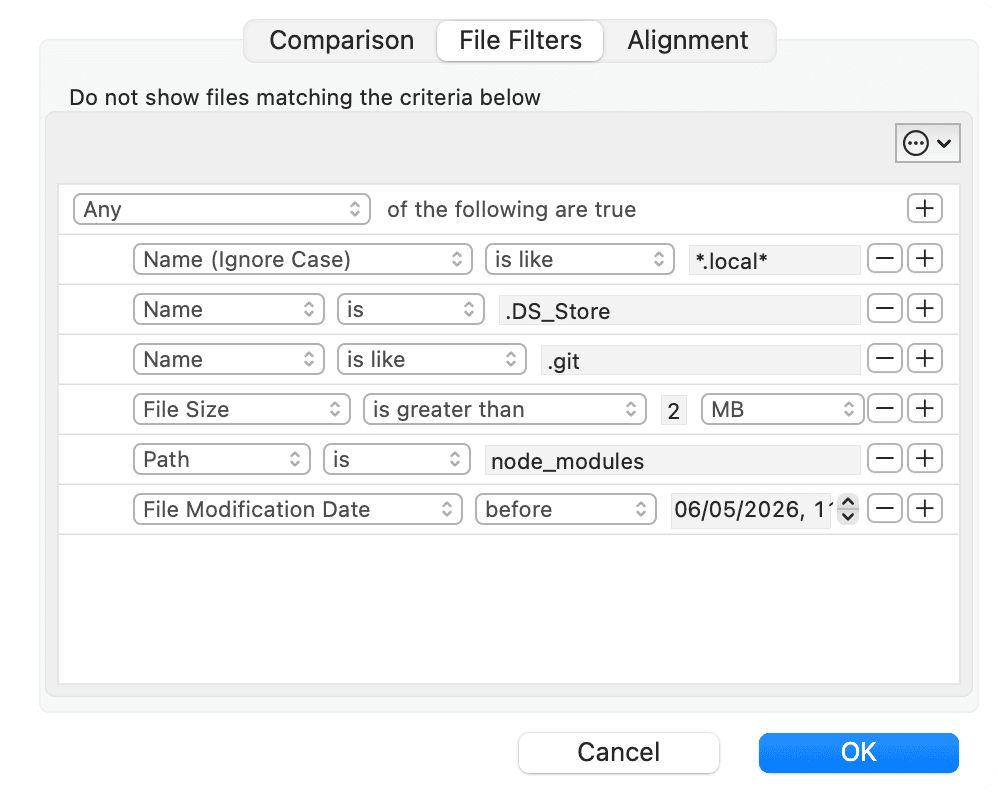
- Any — a file is excluded if at least one rule matches (logical OR)
- All — a file is excluded only if all rules match (logical AND)
Use the + button at the end of a rule row to add a new rule below it, and the − button to remove it.
Example — exclude only large log files
Goal: exclude files that are both named *.log and larger than 10 MB.
You do not want to exclude all .log files, and you do not want to exclude all large files.
Set the operator to All, then add two rules:
Name (Ignore Case)is like*.logFile Sizeis greater than10MB
With All, a file must satisfy every rule to be excluded. Only .log files larger than 10 MB are filtered out. If you used Any, the filter would exclude any file whose name ends in .log plus any file larger than 10 MB — a much broader exclusion.
Each rule is made up of three parts: a category, a comparator, and a value.
Default Filters
The factory-default filters exclude version control directories and common system junk files. See the Comparison Method page for the full list of excluded items (.DS_Store, .git, .svn, .hg, .bzr, CVS, and backup files matching *~).
These rules are combined with Any (logical OR), so a file or folder is excluded if its name matches any one of them.
Filter Categories
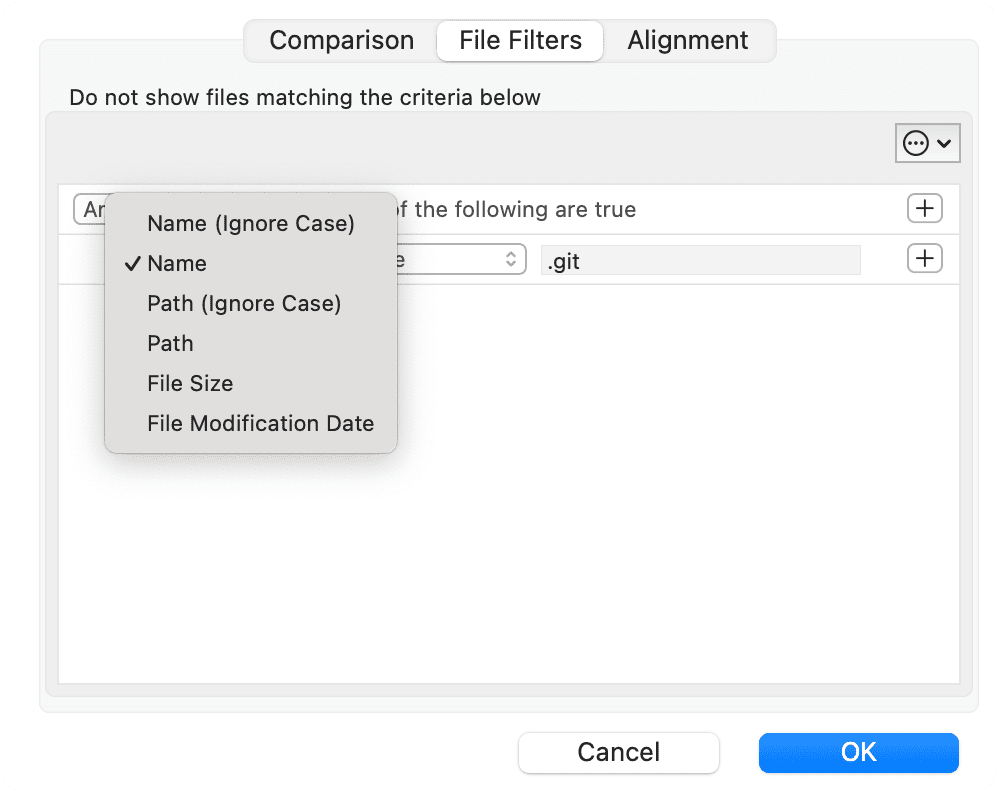
Name Filters
Available for categories Name (case-sensitive) and Name (Ignore Case) (case-insensitive).
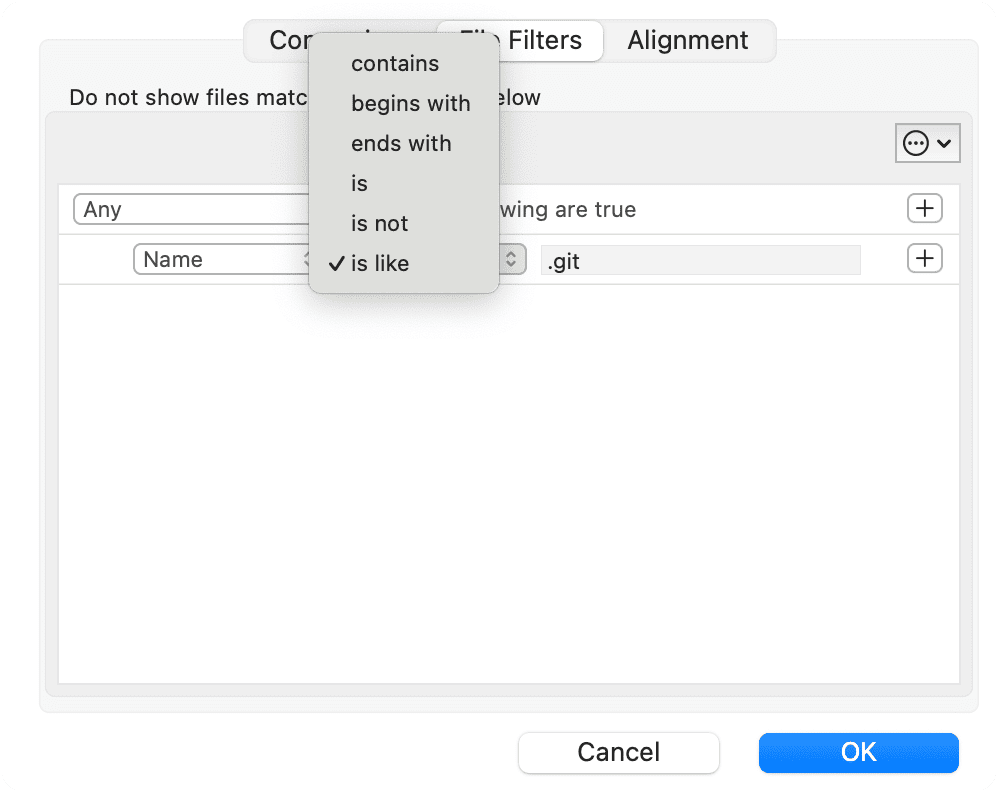
| Comparator | Description |
|---|---|
| contains | Filename contains the specified string |
| begins with | Filename begins with the specified string |
| ends with | Filename ends with the specified string |
| is | Filename is equal to the specified string |
| is not | Filename is not equal to the specified string |
| is like | Filename matches the specified pattern;
? matches exactly one character and * matches zero or more characters |
is like uses glob-style patterns, not regular expressions. The . character has no special meaning — it matches a literal dot.
| Pattern | Matches | Does NOT match |
|---|---|---|
*.tmp |
build.tmp, cache.tmp |
notes.txt |
test_??.swift |
test_01.swift, test_ab.swift |
test_1.swift (only one character after _) |
.* |
.DS_Store, .gitignore, .env |
readme.md |
backup* |
backup.zip, backup_2024.tar.gz |
mybackup.zip (does not start with backup) |
To match hidden files on macOS (names starting with a dot), use the pattern .* with Name (Ignore Case) is like.
Path Filters
Available for categories Path (case-sensitive) and Path (Ignore Case) (case-insensitive).
The value is a path relative to the comparison root.
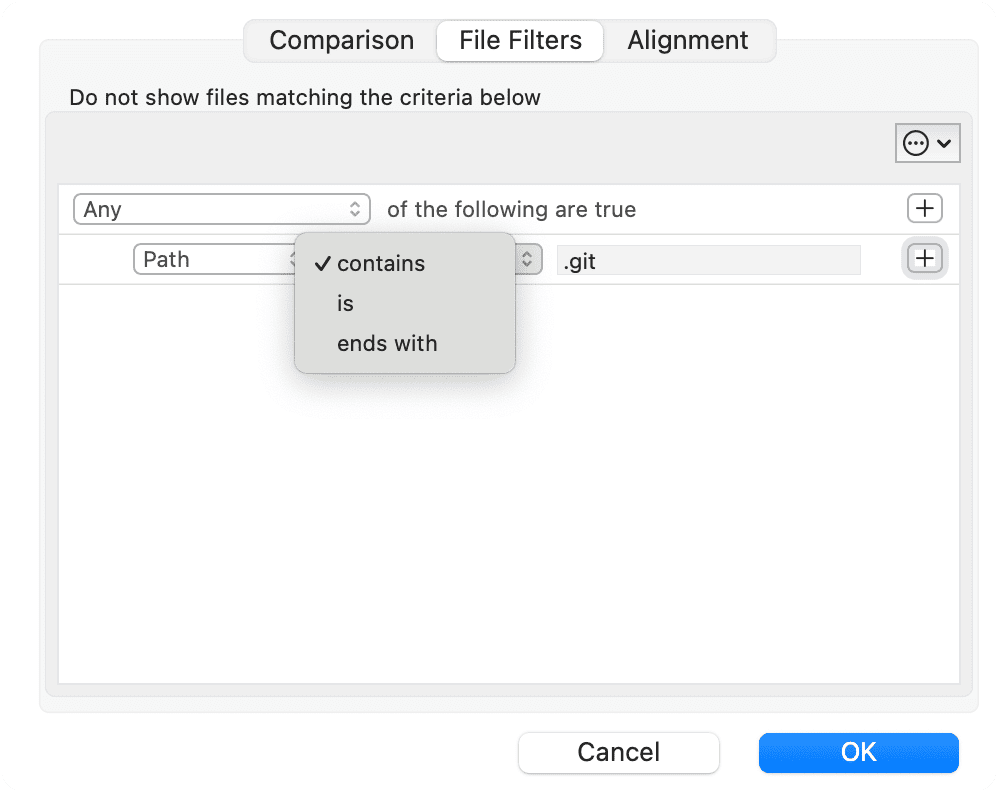
| Comparator | Description |
|---|---|
| contains | Path contains the specified string |
| is | Path is equal to the specified string |
| ends with | Path ends with the specified string |
Example
Left root path: /Users/dave/sources/
/Users/dave/sources/
  project_1
    src/
  project_2
    src/
    index.txt
To exclude only the src folder under project_1, set the path filter value to project_1/src.
The path is relative to the root /Users/dave/sources/; both folders and files are accepted as path values.
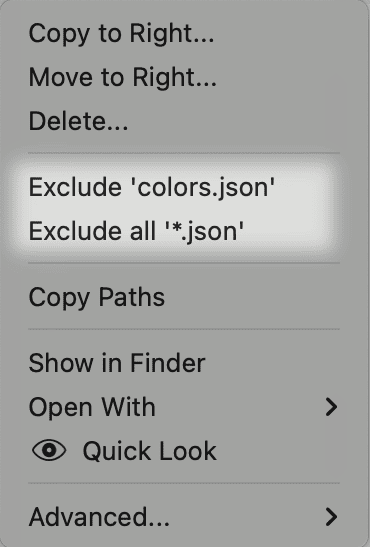
Right-click any file or folder in the folder comparison view and choose Exclude from the context menu. VisualDiffer automatically adds a Path ends with <relative-path> rule for the selected item to the current session’s filters.
Be careful not to add extra characters; the following paths will never match:
project_1//src invalid, double slash
project_1/src/ invalid, trailing slash
File Size Filters
Available for category File Size. Applies to files only, not folders.
Specify the size value and select the unit (Bytes, KB, MB, GB).
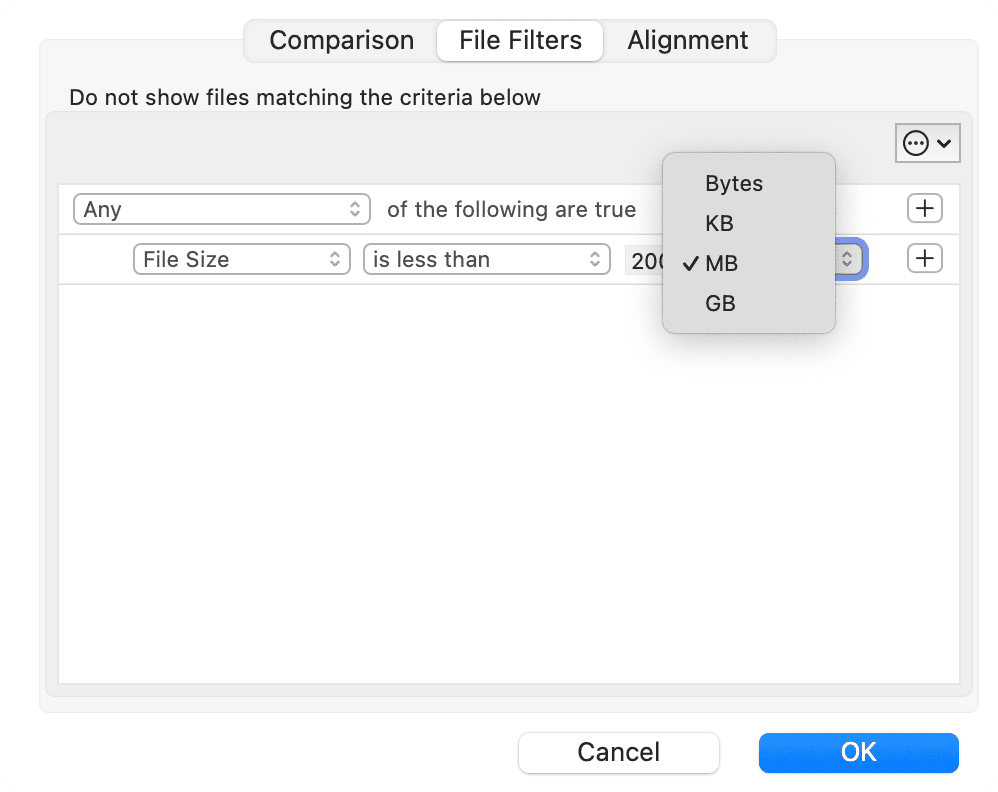
| Comparator | Description |
|---|---|
| is | File size equals the specified value |
| is not | File size does not equal the specified value |
| is less than | File size is smaller than the specified value |
| is greater than | File size is larger than the specified value |
File Modification Date Filters
Available for category File Modification Date. Applies to files only, not folders.
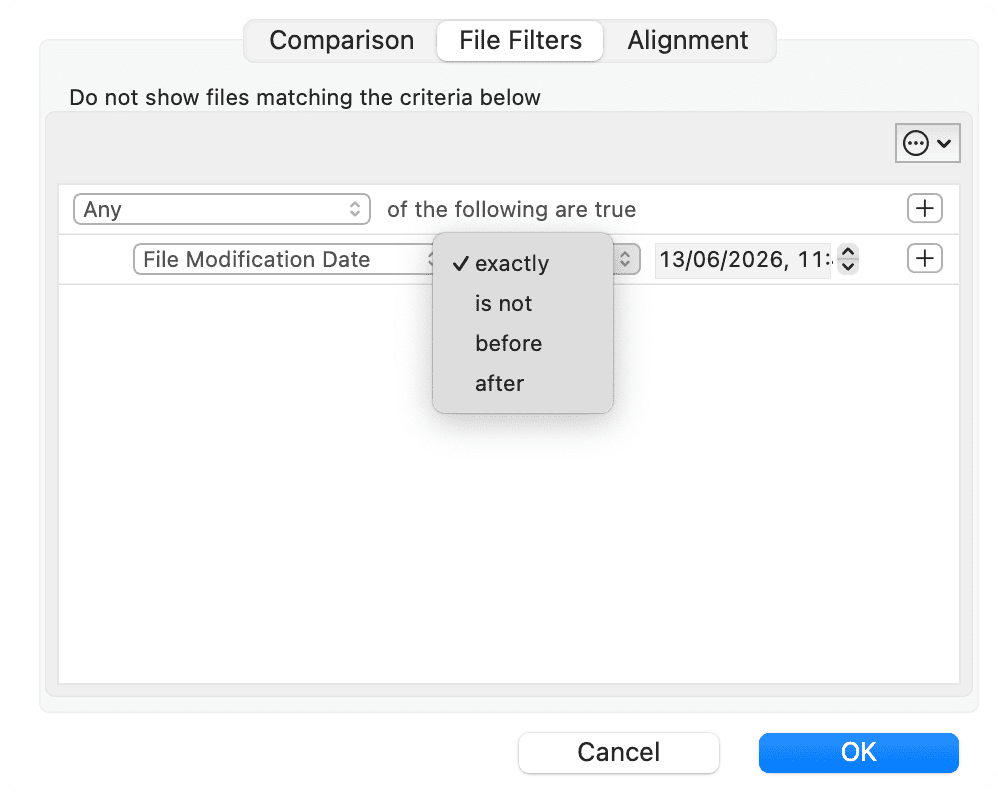
| Comparator | Description |
|---|---|
| exactly | Modification date matches exactly |
| is not | Modification date does not match |
| before | Modification date is earlier than the specified date |
| after | Modification date is later than the specified date |
Show Filtered Files
By default, files and folders that match the active filters are hidden from the folder comparison view. You can make them visible without removing the filters:
- Via the View menu — choose Show Filtered Files to display them. The menu item toggles to Hide Filtered Files when they are visible.
- Via the scope bar — the Filtered segment at the right end of the scope bar shows or hides filtered items without opening any menu.

When filtered items are shown, they appear with a distinct visual style so you can tell them apart from normal comparison results, as shown in the figure below.
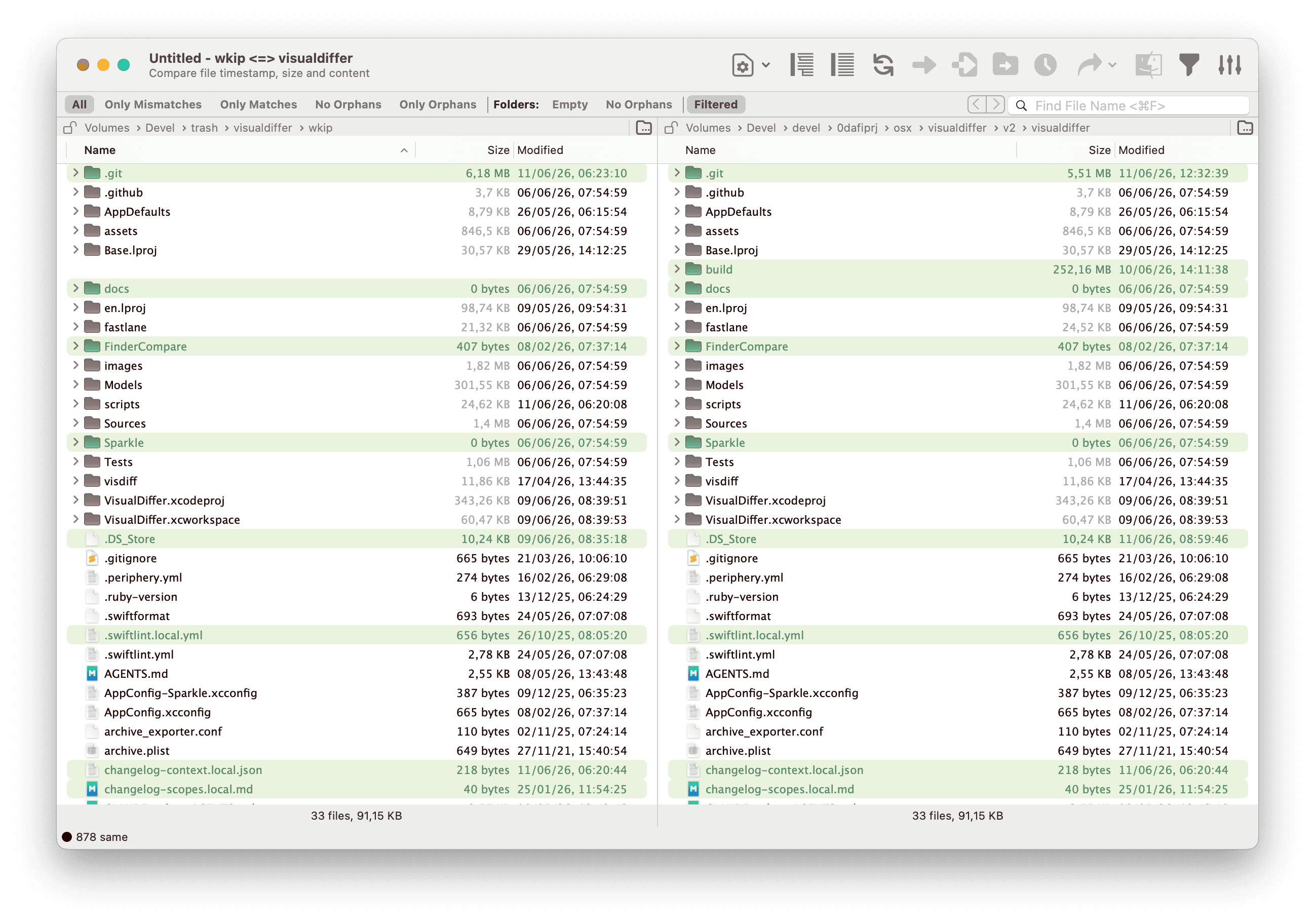
Filtered files are skipped during copy and delete operations even when they are visible. To include them by default, enable Include Filtered Items By Default in Confirmations Preferences.
Managing Filter Sets
The ⊙ button in the top-right corner of the panel opens a menu to manage filter configurations.
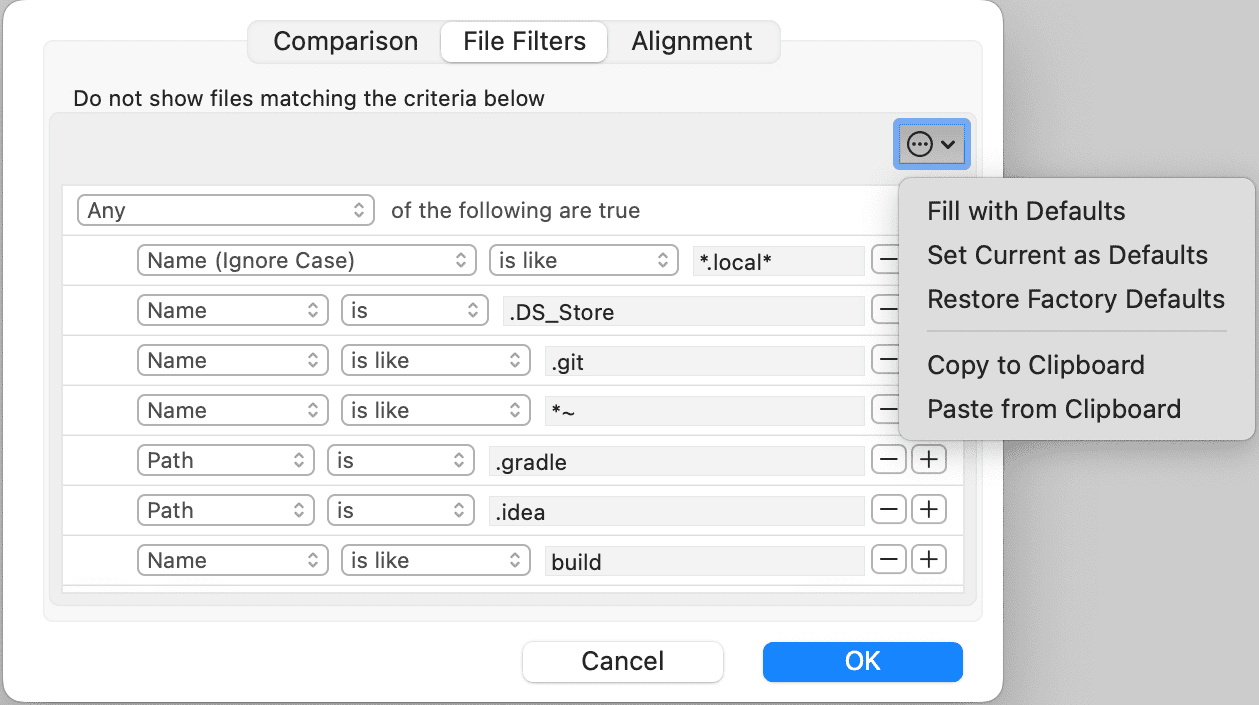
| Action | Description |
|---|---|
| Fill with Defaults | Loads the filters saved as your personal defaults |
| Set Current as Defaults | Saves the current filter list as your personal defaults |
| Restore Factory Defaults | Resets filters to the original factory defaults |
| Copy to Clipboard | Copies the current filter configuration to the clipboard |
| Paste from Clipboard | Applies a filter configuration previously copied to the clipboard |
How session filters and global defaults relate:
Each open session keeps its own copy of the filter rules. Changes you make in the Session Preferences dialog affect only the current session. The ⊙ menu lets you synchronise between the session and the application-wide default:
- Set Current as Defaults — saves the current session’s filters as the new global default, applied to every future new session.
- Fill with Defaults — replaces the current session’s filters with the global default, discarding any local changes.
- Restore Factory Defaults — clears the global default and reverts to the original factory filters (see Default Filters).
Folder Traversal
By default, folders matching the active filters are still traversed during comparison — they are hidden from the view but their contents are read.
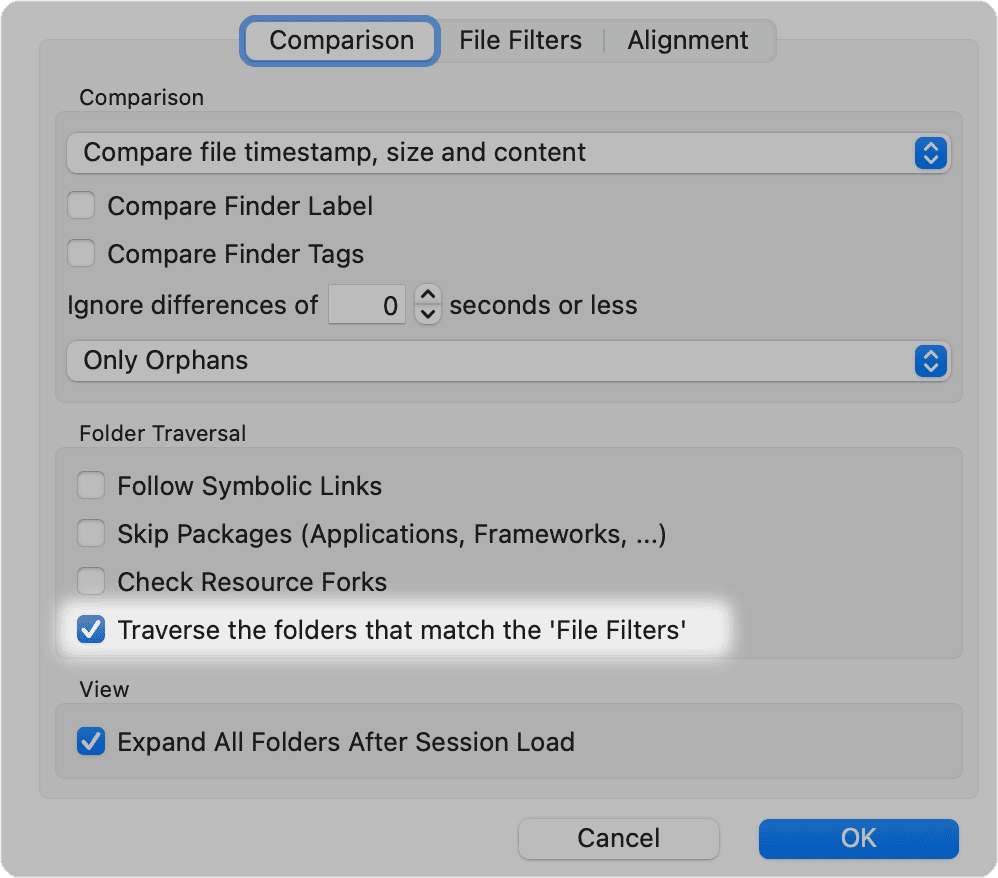
The option Traverse the folders that match the ‘File Filters’ in the Comparison tab controls this behaviour.
When this option is disabled, folders matching the filters are not traversed at all. This makes the scan faster, but those folders will appear empty in the view even if they contain files.
Example — completely skip build output directories
If your project has large build/ or DerivedData/ folders you never need to compare, you can exclude them and skip reading their contents entirely:
- Open the Session Preferences File Filters tab.
- Add a rule:
Nameisbuild(add a second ruleName is DerivedDataif needed, with operator set to Any) - Switch to the Comparison tab.
- Disable the option Traverse the folders that match the ‘File Filters’.
With traversal disabled, VisualDiffer does not read the contents of matching folders at all. The scan is significantly faster on large trees.
With traversal enabled (the default), filtered folders are hidden from the view but their contents are still read. This is useful when you want to hide a folder from the comparison results but still allow copy or delete actions on files inside it.