
All file operations in the folder comparison view are available from the Actions menu and from the right-click context menu. Most operations show a confirmation dialog before proceeding; confirmations can be turned off individually in Preferences → Confirmations.
Hold ⌥ Option when clicking an Actions menu item that has a confirmation setting to force the dialog to appear, even if the confirmation has been disabled.
Copy, Move, Delete
Copy Files — copies the selected files from the active side to the other.
Move Files — moves the selected files from the active side to the other. The source files are deleted after a successful copy.
Delete Files — deletes the selected files from the active side.
When a destination file already exists, VisualDiffer asks whether to replace it.
Advanced Operations
Under Actions → Advanced you find two additional copy and move variants:
- Copy to Folder — copies the selected files to a folder you choose from an open panel, instead of to the mirrored path on the other side.
- Move to Folder — same as above but removes the source files after copying.
- Copy Metadata — copies only the Finder metadata (labels and tags) of the selected files to the other side, without touching the file content.
Sync Files
Sync is a smarter copy: it copies only the files that are newer or orphan (present on one side only). Use it to bring two folders up to date without touching files that are already identical.
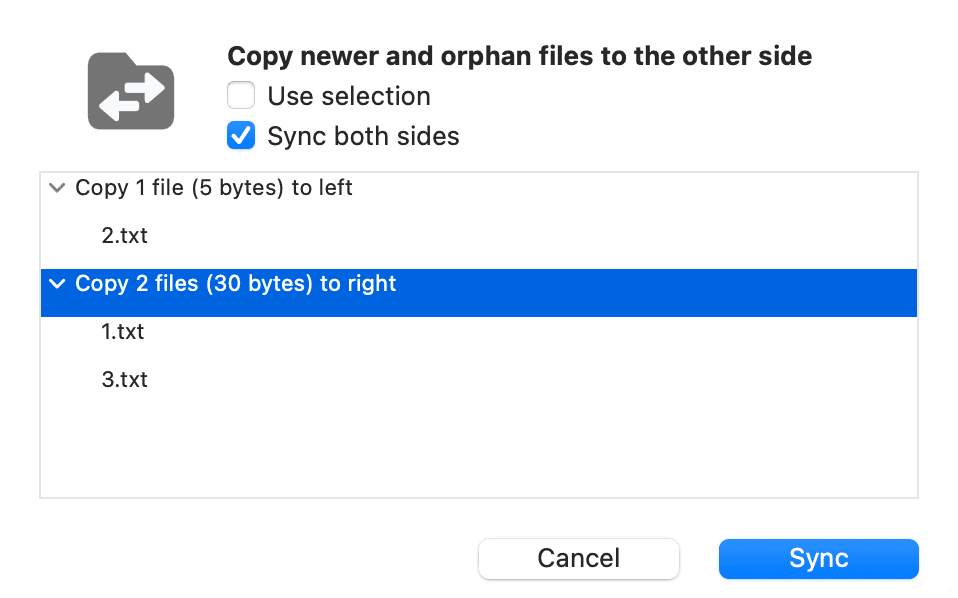
The Sync dialog shows a preview tree of all files that will be copied before anything is changed.
| Option | Description |
|---|---|
| Use selection | Restricts the sync to the files currently selected in the folder view. Disabled automatically when nothing is selected. |
| Sync both sides | Copies newer and orphan files in both directions simultaneously. When off, only files from the side you started the sync on are copied to the other. |
The icon and description at the top of the dialog update in real time to reflect the current direction:
- → right — copies from left to right (default when started from the left tree).
- ← left — copies from right to left (default when started from the right tree).
- ↔ both — copies newer and orphan files in both directions when Sync both sides is on.
Click Sync to start. A progress sheet shows the operation and reports any errors.
Set Modification Date
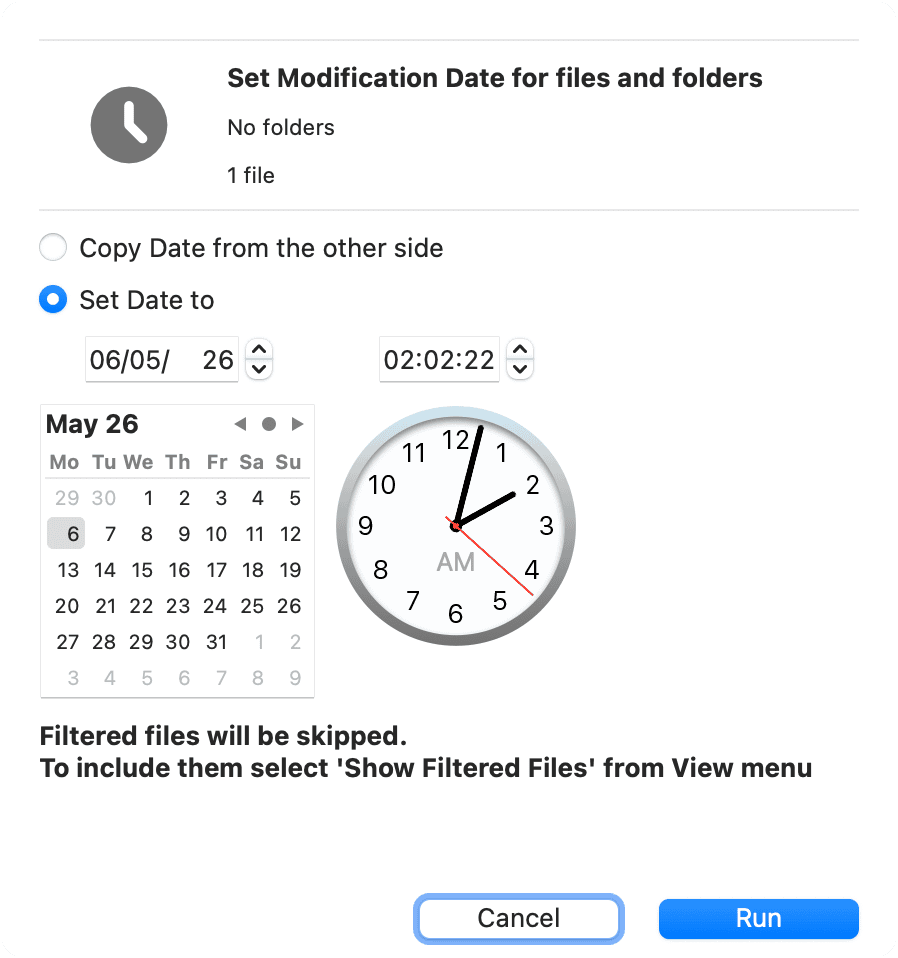
This operation changes the modification date of the selected files. It is useful to fix timestamp mismatches without touching file content, for example after copying files across file systems that lose timestamp precision.
| Option | Description |
|---|---|
| Copy Date from the other side | Sets the modification date of each selected file to match the date of the corresponding file on the other side. |
| Set Date to | Sets the modification date to a specific date and time you pick with the date and time pickers. |
| Apply to all folder contents | Visible only when the selection contains folders. When enabled, the date change is applied recursively to every file and subfolder inside the selected folders. |