The file diff view shows two text files side by side with their differences highlighted. You can copy or delete lines to resolve differences and save the result.
Main Areas
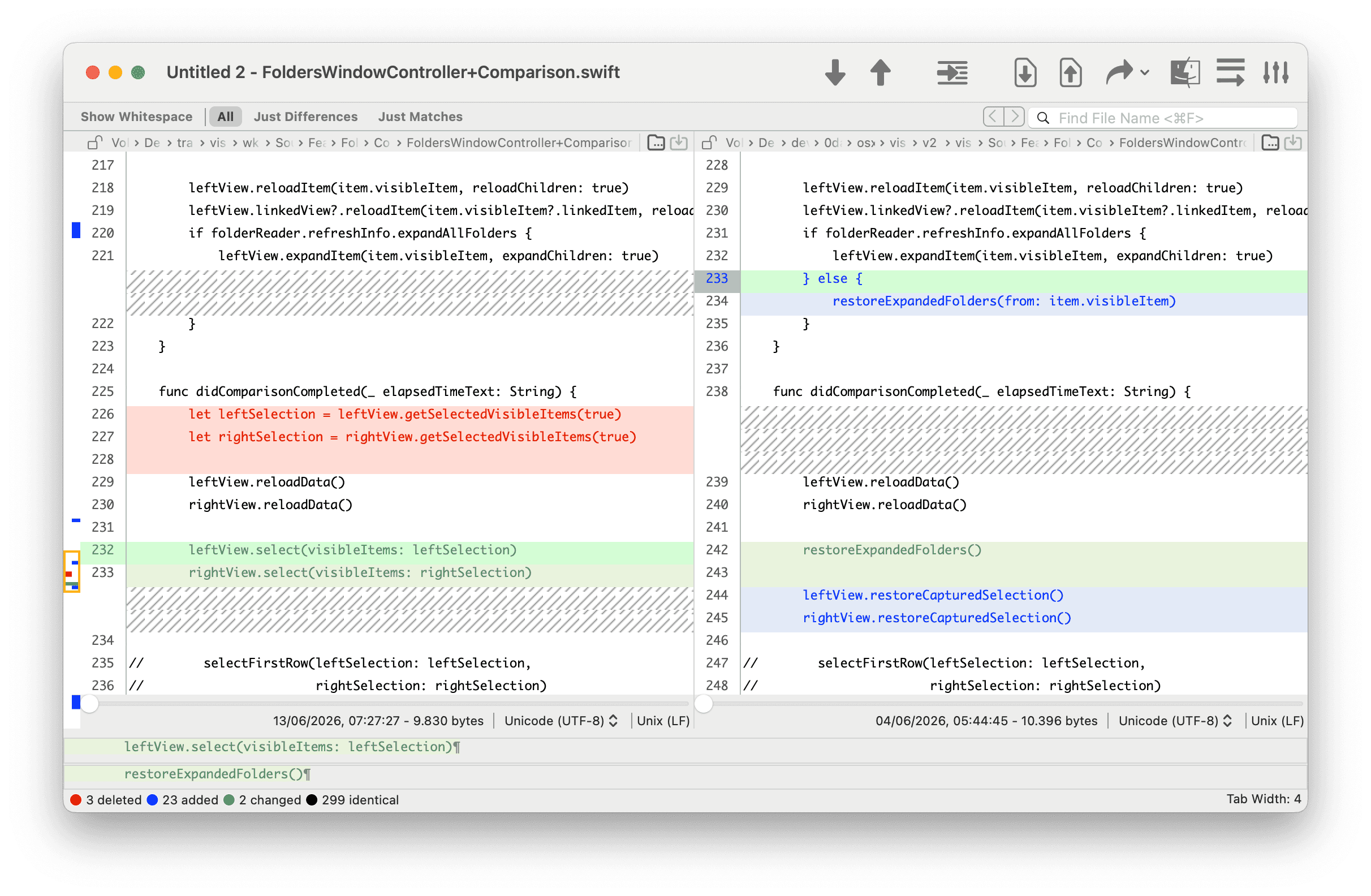
① Scope bar — controls which lines are shown and toggles whitespace visibility. See Scope Bar.
② Diff panels — the two file contents shown side by side. Each line is color-coded; see Colors Legend.
③ Difference indicator — the narrow strip on the right side gives a bird’s-eye view of all differences in the file. Click anywhere on it to jump to that area. See Colors Legend.
④ Info bar — shows per-file metadata and lets you change the file encoding. See Info Bar.
Scope Bar
The scope bar has two independent controls.
Show Whitespace — when active, space, tab, and line-ending characters are drawn as visible symbols. This is particularly useful when comparing files with different line-ending conventions: Unix (LF) lines end with ¶, while DOS (CR+LF) lines end with ¤. With Show Whitespace enabled, the end-of-line markers are visible on every line, making it immediately clear which convention each file uses and where the two differ.
The filter group is mutually exclusive:
| Segment | Shows |
|---|---|
| All | Every line in the file |
| Just Differences | Only lines that differ between left and right |
| Just Matches | Only lines that are identical on both sides |
Info Bar
Each panel has an info bar at the bottom showing:
- Date and size — the file’s last modification date and byte count.
- Encoding — the character encoding used to read the file. Click the popup to switch to a different encoding; the file is reloaded immediately with the new encoding.
- EOL — the line ending format detected in the file (LF for Unix, CR+LF for Windows, CR for classic Mac).
Copying and Deleting Lines
These are the core editing actions. Select one or more lines first, then use the Actions menu:
- Copy Lines to Left — copies the selected lines from the right panel to the left panel.
- Copy Lines to Right — copies the selected lines from the left panel to the right panel.
- Delete Lines — removes the selected lines from the active panel.
After a copy or delete the affected panel is marked as modified. Save it with the Save button in the path bar above the panel, or via the standard File → Save.
Selecting a Diff Section
A section is a contiguous block of differing lines. Two shortcuts in the Edit menu speed up selection:
- Select Section — selects all lines belonging to the same diff section as the current row.
- Select Adjacent Sections — extends the selection to include the immediately neighbouring sections above and below.
Show Details
View → Show Details opens a panel below the diff tables that shows the selected line. Hide it again from the same menu item or from the right-click menu inside the panel.
Line-ending characters are always shown in the Details panel, even when Show Whitespace is off. Unix lines end with ¶, DOS lines end with ¤. This makes it easy to identify the source of a difference that looks identical at first glance.
Navigating Differences
Use the toolbar buttons (or the View menu) to move between differences:
- Previous Difference / Next Difference — jumps to the previous or next differing section within the current file. When you reach the end of the file, if the diff was opened from a folder comparison session, VisualDiffer can automatically load the previous or next file pair that has differences. This behaviour is configured in Preferences → Text → Difference Navigator.
Reload and Recompare
- Reload Files (View menu) — re-reads both files from disk without running a new comparison. Use this after an external application has modified a file.
- Recompare (View menu) — re-reads both files and runs a fresh comparison. Use this after changing the session comparison options.
Session Preferences
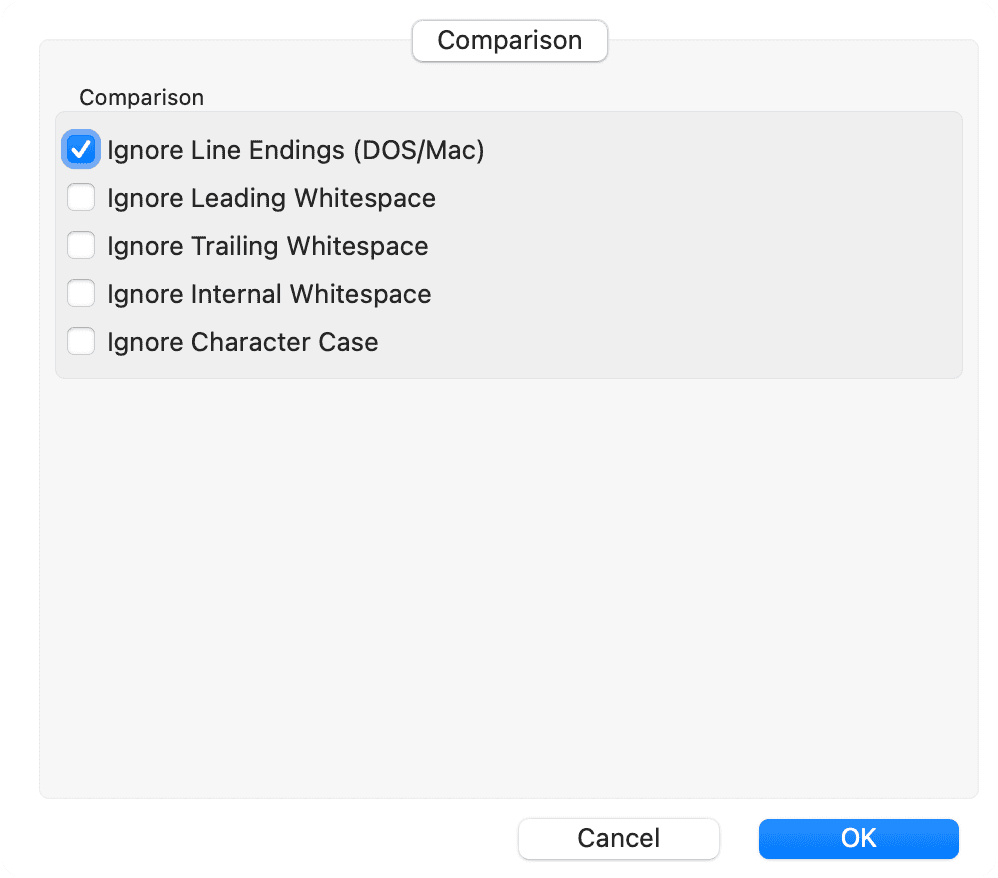
Open the session preferences with the toolbar button or the Actions menu. The Comparison tab contains options that affect how differences are computed for this file pair.
| Option | Effect |
|---|---|
| Ignore Line Endings (DOS/Mac) | Files that differ only in CR+LF vs LF vs CR are treated as identical |
| Ignore Leading Whitespace | Spaces and tabs at the start of a line are ignored |
| Ignore Trailing Whitespace | Spaces and tabs at the end of a line are ignored |
| Ignore Internal Whitespace | Sequences of spaces and tabs within a line are treated as equivalent |
| Ignore Character Case | Uppercase and lowercase letters are treated as identical |
Changing any option triggers a recompare automatically.
Other View Options
- Word Wrap (View menu) — wraps long lines instead of requiring horizontal scrolling.
- Swap Sides (View menu) — exchanges left and right, reversing the direction of the comparison.
- Set Left Read-Only / Set Right Read-Only (View menu) — prevents editing on the chosen side.